> For the complete documentation index, see [llms.txt](https://docs.adpage.io/llms.txt). Markdown versions of documentation pages are available by appending `.md` to page URLs; this page is available as [Markdown](https://docs.adpage.io/data-and-insights/marketing-integrations/google-search-console.md).
# Google Search Console
Connect Search Console to see organic Google clicks, impressions and positions — branded and non-branded apart — and ask your AI assistant about your SEO.
Connect Google Search Console so AdPage can read how your site performs in organic Google search: clicks, impressions, click-through rate and average position per search query, page, country and device. The connection is **read-only**: AdPage asks for `webmasters.readonly` and nothing else, so it can never change a property, submit a sitemap, request indexing or add users.
### Before you start
You need a Google account with access to the property in Search Console as an **Owner**, **Full user** or **Restricted user**. An unverified property or an access request that is still pending does not count: Google returns no data for it.
Search Console has **its own Google sign-in**, separate from Google Analytics, Google Ads and Google Tag Manager. You only grant read access to Search Console, and your other Google connections stay exactly as they are. The account you use here can be a different one.
The same advice as for Google Analytics applies: AdPage keeps reading through the account you approve with, so a shared account, or one owned by the agency that manages the site, survives staff changes where a personal account does not.
You also need a container selected in AdPage. The connection is stored per container.
### Connect Search Console
{% stepper %}
{% step %}
#### Open the tile
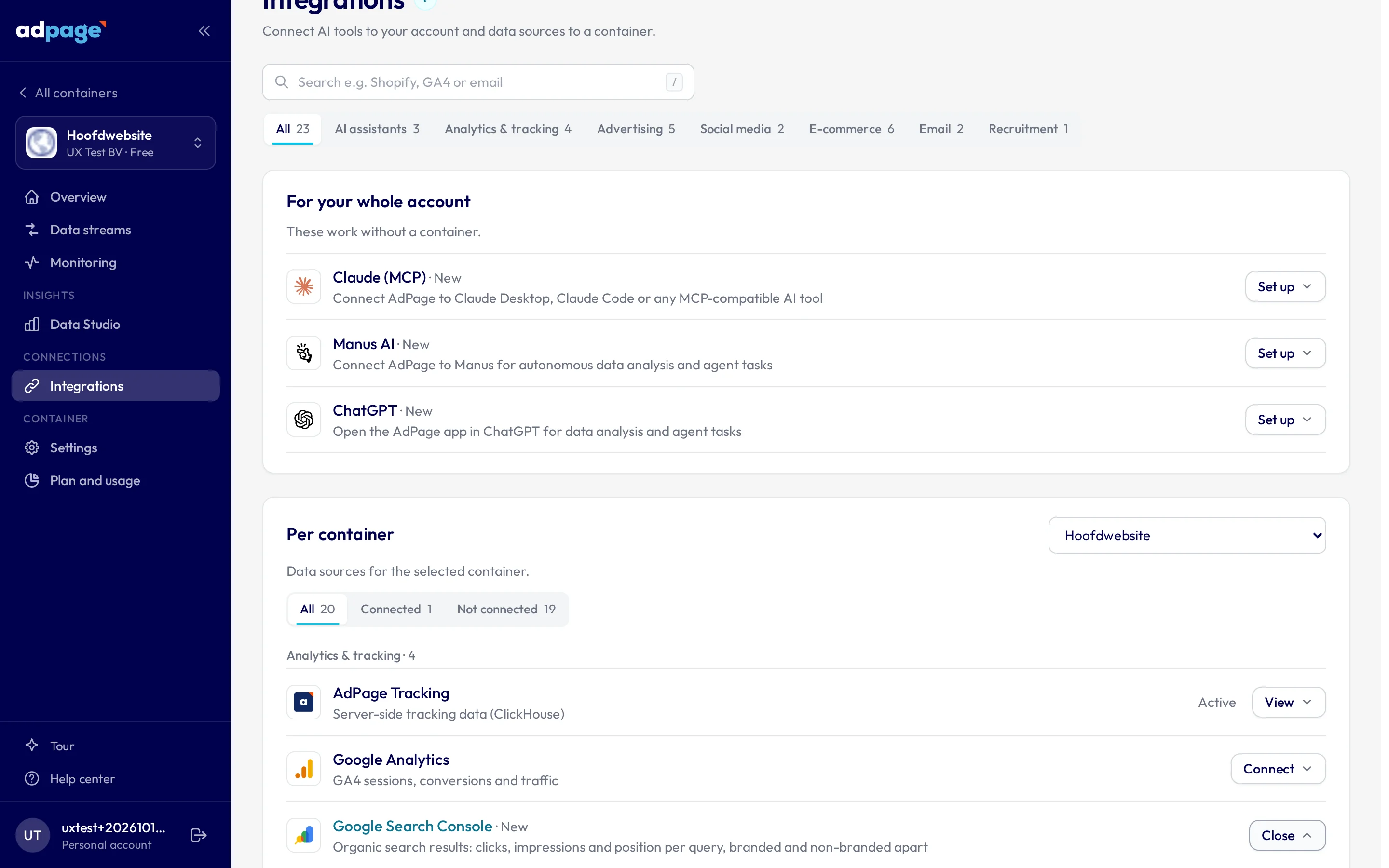
Go to **Integrations**, select the container at the top of the page, and open the **Google Search Console** tile. Searching for "Search Console" or "SEO" finds it too.
The Google Search Console tile on the Integrations page.
{% endstep %}
{% step %}
#### Approve access at Google
Select **Connect Search Console**. Google asks which account to use and shows what AdPage is requesting: your identity, and read-only access to Search Console. Approve it and you are returned to the tile.
{% endstep %}
{% step %}
#### Choose your property
AdPage lists the verified properties the approved account can reach. Pick the one that belongs to this container and select **Save property**.
If the site has both, choose the **domain property** (`sc-domain:example.com`). It counts every subdomain and both http and https. A **URL-prefix property** (`https://www.example.com/`) only counts addresses that start with exactly that URL.
{% endstep %}
{% endstepper %}
The tile then shows **Google Search Console is connected**, with the property and the Google account. The property is fixed while the connection exists: to choose another one, select **Disconnect** and connect again.
### What you get
#### In Data Studio
Under **Kanalen & Campagnes** (Channels & Campaigns), the **Organisch zoeken** (Organic search) widget shows organic clicks, impressions, CTR and average position against the previous period, the trend of branded against non-branded searches, your top search queries, and your organic brand clicks next to your brand campaigns in Google Ads.
The widget is part of the Performance and Ultimate packages.
**Branded or not is decided by your brand terms.** Without a list of your own, AdPage takes the name from the property's domain: `sc-domain:example.com` becomes "example". Select **Aanpassen** (Edit) next to the brand terms in the widget to add spelling variants or product names that people search for. Matching ignores capitals, accents and spaces. The list is per container, so your AI assistant uses the same one.
#### In your AI assistant
With Search Console connected, Claude, ChatGPT or Manus can answer SEO questions from your own data through the AdPage MCP. Name the container or domain, and the period. Some of the questions it can answer:
| You ask | What it does |
| ------------------------------------------------------------------ | ------------------------------------------------------------------------------------------------------------------------------------------------------- |
| "Which search queries brought the most organic clicks last month?" | A report per query, page, country, device or day, with every query marked branded or non-branded |
| "How much of our organic traffic is brand search?" | Splits clicks and impressions per day into branded, non-branded and unassigned |
| "Why did organic clicks drop compared to the month before?" | Compares two periods and lists the queries or pages that rose and fell most, with their change in position |
| "Which keywords are close to the top 3?" | Lists queries or pages at position 4 to 20 with many impressions — where moving up a few places gains the most clicks |
| "Which queries have a poor click-through rate?" | Finds queries in the top 10 whose CTR is less than half of what your own site gets at that position, with the clicks they miss out on |
| "Do several of our pages compete for the same keyword?" | Finds non-brand queries where two or more of your pages each take a real share of the impressions |
| "Is this page indexed by Google? If not, why?" | Checks up to 10 URLs: indexed or not and the reason, noindex or robots.txt blocks, the last crawl, which canonical Google chose, and rich-result issues |
| "Are our sitemaps OK?" | Lists the submitted sitemaps with errors, warnings, the number of URLs and when Google last read them |
The assistant can also compare against a period you name, such as the same month last year.
### Reading the numbers
**Search Console runs 2 to 3 days behind.** The last days of any period are missing or still incomplete. When it compares periods, AdPage stops the current period at the last day that has data and makes the comparison period equally long, so a missing weekend does not look like a drop.
**Per-query numbers do not add up to the total.** Google leaves out queries that very few people searched for, to protect their privacy. Those count in the total but not per query, so AdPage shows them separately as unassigned instead of adding them to branded or non-branded.
**Clicks are not sessions.** A click in Search Console is a click on your result in Google; GA4 counts sessions, after consent and by its own rules. Expect the two to differ.
**Average position is weighted by impressions.** A query that showed 10,000 times at position 2 weighs more than one that showed 10 times at position 40.
**Search Console knows nothing about purchases.** It cannot tell you whether organic visitors bought something or were returning customers. For revenue per channel, use the attribution in Data Studio or GA4.
**The index check is Google's last crawl, not a live test.** A change you made today shows up after Google crawls the page again. Google allows 2,000 index checks per property per day, so the assistant checks specific pages and never crawls a whole site.
### Troubleshooting
**No properties appear.** The approved Google account has no verified property in Search Console. Ask the owner of the property to add the account under **Settings → Users and permissions** in Search Console, or connect with another account. Beware of approving with the wrong account when several are signed in on the same browser — Google picks one silently.
**You chose the wrong property.** Select **Disconnect** on the tile and connect again; you choose the property after signing in.
**The tile asks you to reconnect.** Google is refusing the stored access: usually the password changed, AdPage was removed from the account's connected apps, or the account lost access to the property. Select **Reconnect**. Because Search Console has its own sign-in, reconnecting Google Analytics does not fix it, and the other way around.
**The branded share looks wrong.** Check the brand terms in the Organisch zoeken widget. A brand name that is also a common word, or a product that people search for by its own name, usually needs a term removed or added.
**The assistant says Search Console is not connected.** The connection is per container: check that the tile shows a chosen property on the container you asked about.
**The index check says a URL is not in the property.** Give full URLs (`https://…`) of the site that belongs to the chosen property. A URL-prefix property only covers addresses that start with it.
Still stuck? Contact with the container and the property.
---
# Agent Instructions
This documentation is published with GitBook. GitBook is the documentation platform designed so that both humans and AI agents can read, navigate, and reason over technical content effectively. Learn more at gitbook.com.
## Querying This Documentation
If you need additional information that is not directly available in this page, you can query the documentation by asking a question.
Perform an HTTP GET request on the following URL with the `ask` and `goal` query parameters:
```
GET https://docs.adpage.io/data-and-insights/marketing-integrations/google-search-console.md?ask=&goal=
```
`ask` is the immediate question: it should be specific, self-contained, and written in natural language.
`goal` is what the user is ultimately trying to achieve, the reason they need the answer. Sharing it helps GitBook give you a better, more relevant answer. A goal is most helpful when it describes the outcome the user wants rather than restating the question. For example, with `ask=how do I create an API token`, a goal like `automate deployments from our CI pipeline` lets GitBook tailor the answer to that use case.
The response will contain a direct answer to the question and relevant excerpts and sources from the documentation.
Use this mechanism when the answer is not explicitly present in the current page, you need clarification or additional context, or you want to retrieve related documentation sections.