> For the complete documentation index, see [llms.txt](https://docs.adpage.io/llms.txt). Markdown versions of documentation pages are available by appending `.md` to page URLs; this page is available as [Markdown](https://docs.adpage.io/data-and-insights/marketing-integrations/spotler-mail.md).
# Spotler Mail+
Connect Spotler Mail+ to see mailing performance, weekly send volume and email revenue in Data Studio and the Marketing Mix Model.
Connect your Spotler Mail+ account to bring email marketing into your AdPage reports and the Marketing Mix Model. AdPage only reads: nothing is written back to Spotler and no mailings are ever sent.
{% hint style="info" %}
This page is about **Spotler Mail+**, the email marketing platform formerly called MailPlus. Other Spotler products, such as Spotler Connect, use different keys and cannot be connected here.
{% endhint %}
### Before you start
You need two values from Spotler Mail+: an **Authentication Key** and an **Authentication Secret**. You create them yourself in the API settings of Spotler Mail+ — in the Dutch interface the button is called **Nieuwe authenticatie**. Both are required; with only one of them the connection will not work.
Can't find the API settings? The REST API may not be active for your account yet. Spotler explains how to activate it in [its help centre](https://mailplus.spotler.help/hc/nl/articles/360035232913) (in Dutch).
You also need a container selected in AdPage, and an AdPage login with access to that container. The connection is stored per container, so a customer with several containers connects each one separately.
### Connect Spotler Mail+
{% stepper %}
{% step %}
#### Open the integrations page
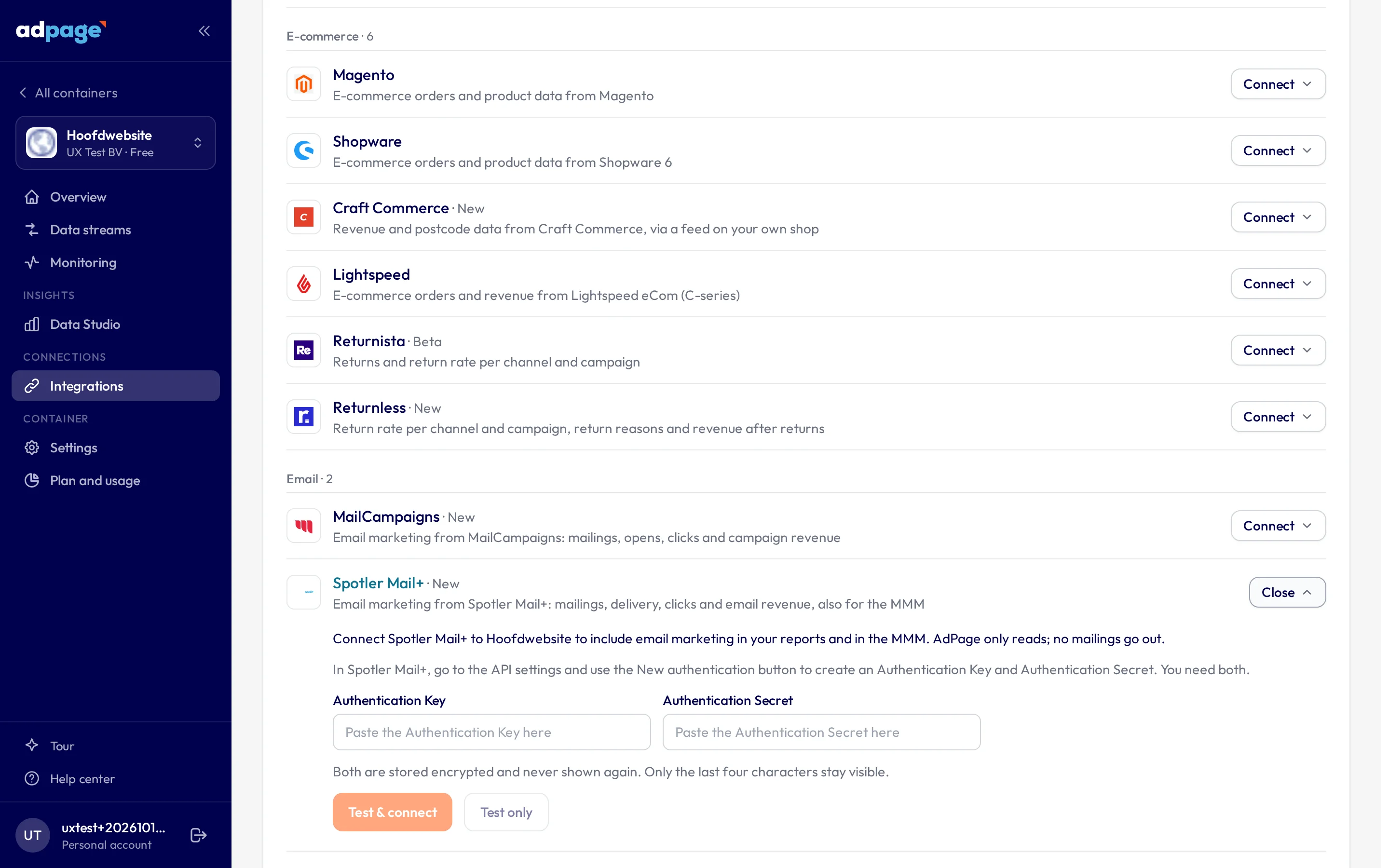
Go to **Integrations** and select the container at the top of the page. Then open the **Spotler Mail+** tile. Searching for "mailplus" finds it too.
The Spotler Mail+ tile on the Integrations page.
{% endstep %}
{% step %}
#### Paste both values
Fill in the **Authentication Key** and the **Authentication Secret**. Both are stored encrypted and are never shown again — only their last four characters stay visible, so you can recognise which pair is stored.
{% endstep %}
{% step %}
#### Test and connect
Select **Testen & koppelen**. Before anything is saved, AdPage reads your automations, your mailings of the last 90 days and the statistics of your latest mailing, to prove the pair works. A pair that does not work is never stored, so the tile cannot say "connected" while every widget stays empty.
Use **Alleen testen** if you want to check the pair without saving it yet.
{% endstep %}
{% endstepper %}
The test shows how many email mailings you sent in the last 90 days, the name of the most recent one and how many automations the account has. It also tells you whether Spotler's eCom module supplies revenue per mailing.
### What you get
Four widgets for the **E-mail & Lifecycle** section of Data Studio. They are not part of that section's default set yet, so add them yourself with **Widget toevoegen**:
* **E-mail KPI's (Spotler)** — delivered emails, unique click rate, click-to-open rate and email revenue, plus emails sent, open rate, unsubscribes and bounce rate over the selected period.
* **Mailings (Spotler)** — one row per mailing, with its send date, deliveries, open rate, click rate, click-to-open rate, unsubscribes and revenue.
* **E-maildruk per week (Spotler)** — delivered emails and clicks per week, counted on the send date. This is the series the Marketing Mix Model uses.
* **Van mailing naar order (Spotler)** — the path from delivered email to a click to your webshop, a shopping cart and a converted cart, with email revenue and revenue per 1,000 delivered emails.
When Spotler supplies revenue, email also appears in the **Kanaal KPI's** widget, on a separate row below the totals line. It is not counted in the totals: email buys no media, so adding its revenue to the paid channels would change what every total in that table means.
Finally, weekly delivered emails and clicks feed the Marketing Mix Model as a baseline control. Email carries no media spend, so it is not a channel in the model — but how much email went out is a real driver of the baseline, and the model is better for knowing it. The revenue Spotler attributes to mailings is never used in the model: that revenue is already part of what the model explains.
AdPage loads the history once, when your model is prepared. After that, the last four weeks are refreshed every Monday, because opens and clicks keep coming in for days after a send.
### Reading the numbers
{% hint style="warning" %}
**Automations are not included.** Spotler Mail+ provides no figures per period for automations (campaigns), so AdPage counts bulk mailings only, and the widgets say so when your account has automations. The Marketing Mix Model leaves them out on purpose as well: an automation is triggered by something a customer did on your site, and that visit often came from paid media.
{% endhint %}
**Email only.** SMS and direct-mail sends in Spotler Mail+ are left out; they are a different channel.
**Delivered means accepted.** Delivered is the number Spotler reports as accepted: sent minus hard and soft bounces. Opens and clicks count unique contacts.
**Open rates are unreliable.** Apple Mail Privacy Protection pre-loads images, which inflates opens unpredictably. The open rate is shown because Spotler reports it, but do not steer on it. Clicks and revenue are the trustworthy signals.
**Rates are weighted, not averaged.** The rates in the KPI widget are calculated from the summed counts, so a test mailing to 200 people does not count as heavily as a send to your whole list.
**Revenue needs Spotler's eCom module.** Without it Spotler knows no revenue, and AdPage shows a dash instead of €0 — unknown is not the same as zero. The funnel widget then stays empty, and email gets no row in **Kanaal KPI's**.
**Revenue is attributed by Spotler.** Spotler credits orders to a mailing by its own rules, based on unique contacts, while AdPage measures on last-click. The two figures will differ, and that is expected — the same is true of every advertising platform in your reports.
**Recent mailings are still growing.** Opens and clicks keep arriving for days after a send, so yesterday's mailing will still rise.
**Weeks follow the Dutch send date.** A newsletter sent on Sunday at 23:30 counts in that week, not in the next one.
**Long periods are capped.** To keep the widgets fast, AdPage fetches statistics for the 250 most recent mailings in the period. When there are more, the widget says so — choose a shorter period to see the rest.
**A week marked "onvolledig".** One of its mailings came back without statistics. That mailing is left out of the totals, so the week reads too low; the widget states how many mailings are missing. The Marketing Mix Model skips such a week rather than storing it too low.
### Troubleshooting
**The key is rejected.** The message names what Spotler answered. Check that you copied both values completely, without spaces at the end, and that they come from Spotler Mail+ — keys from another Spotler product will not work here.
**The test finds no mailings.** The count covers email mailings sent in the last 90 days. If it says zero while you do see recent mailings in Spotler, the tile lists the fields Spotler returned — send that line to support.
**The tile asks you to reconnect.** Spotler is refusing the stored key, usually because it was replaced or removed in Spotler Mail+. Create a new Authentication Key and Secret and paste them. To swap a working pair for a new one, use **Sleutel vervangen**: the new pair is tested first, and if that fails the current pair stays in place.
**No revenue and an empty funnel.** Spotler's eCom module is not supplying figures. Revenue appears once the module is active in Spotler Mail+.
**The widgets are missing.** They are not in the default set of **E-mail & Lifecycle** yet; add them with **Widget toevoegen**.
**Numbers do not match Spotler.** First check the period, then whether automations explain the difference — they are excluded by design. If revenue is the mismatch, remember that Spotler and AdPage attribute differently.
**Disconnecting.** Select **Ontkoppelen** in the tile. That removes AdPage's copy of the key pair; the pair itself stays valid in Spotler Mail+ until you delete it there.
{% hint style="warning" %}
**Spotler Mail+ is not covered by the daily connection check**, so a broken connection does not email you. If email numbers stop appearing, check the tile.
{% endhint %}
Still stuck? Contact and include the container, the period and what the widget showed.
---
# Agent Instructions
This documentation is published with GitBook. GitBook is the documentation platform designed so that both humans and AI agents can read, navigate, and reason over technical content effectively. Learn more at gitbook.com.
## Querying This Documentation
If you need additional information that is not directly available in this page, you can query the documentation by asking a question.
Perform an HTTP GET request on the following URL with the `ask` and `goal` query parameters:
```
GET https://docs.adpage.io/data-and-insights/marketing-integrations/spotler-mail.md?ask=&goal=
```
`ask` is the immediate question: it should be specific, self-contained, and written in natural language.
`goal` is what the user is ultimately trying to achieve, the reason they need the answer. Sharing it helps GitBook give you a better, more relevant answer. A goal is most helpful when it describes the outcome the user wants rather than restating the question. For example, with `ask=how do I create an API token`, a goal like `automate deployments from our CI pipeline` lets GitBook tailor the answer to that use case.
The response will contain a direct answer to the question and relevant excerpts and sources from the documentation.
Use this mechanism when the answer is not explicitly present in the current page, you need clarification or additional context, or you want to retrieve related documentation sections.